
Manage Your Cameras With Ranch Plus
With Ranch Plus, managing your camera subscription has never been easier. Everything can be done directly from the HuntControl app—from adding new cameras to activating or deactivating existing ones. There’s no need to log in to your WiseEye account online, upgrade plans, or make subscription changes every time your camera setup changes.
Ranch Plus was built to give you the flexibility and simplicity you’ve always wanted. Whether you’re expanding your camera network, moving cameras to new locations, or adjusting your setup throughout the season, Ranch Plus adapts to your needs automatically.
Add Cameras Without Changing Your Subscription
With Ranch Plus, you can add as many cameras to your account as you need, whenever you need them. Simply add a camera in the HuntControl app and start using it, your billing adjusts automatically. No phone calls, no support tickets, and no plan upgrades required everything is done in the HuntControl app. Whether you’re adding one camera or ten, the process stays exactly the same.
Your hunting strategy can change overnight. You may discover a new hotspot, gain access to another property, or decide to increase coverage during the rut. Your subscription shouldn’t slow you down.
What makes Ranch Plus different is that it’s a dynamic plan designed around actual usage. Instead of paying for a fixed data package whether you use it or not, Ranch Plus charges based on the cameras that are active and the data they actually consume. If a camera isn’t sending data, you’re not paying for unnecessary service.
This flexible approach can save money while giving you the freedom to run your cameras the way you want. Add cameras when you need them, scale back when you don’t, and never worry about upgrading or downgrading plans. Ranch Plus grows with your camera network, making it the simplest and most cost-effective way to manage your WiseEye cameras.
Once you are on Ranch Plus you can do anything you need to manage your account from the app. Here is a step by step guide on adding cameras to ranch plus.
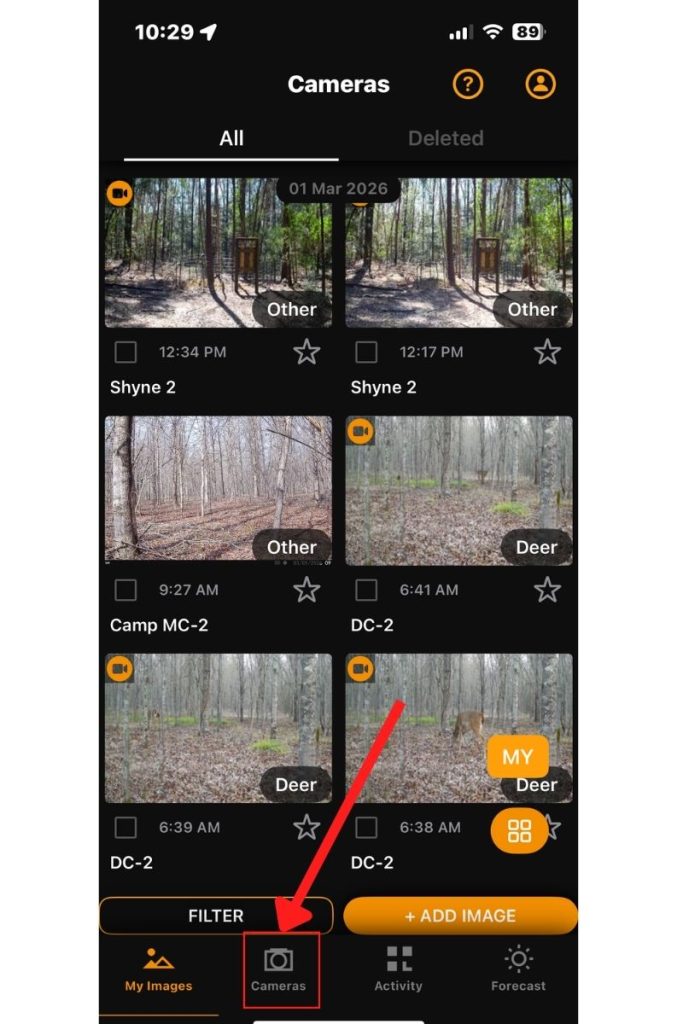
Step 1: Locate the Cameras Section towards the bottom of your HuntControl.
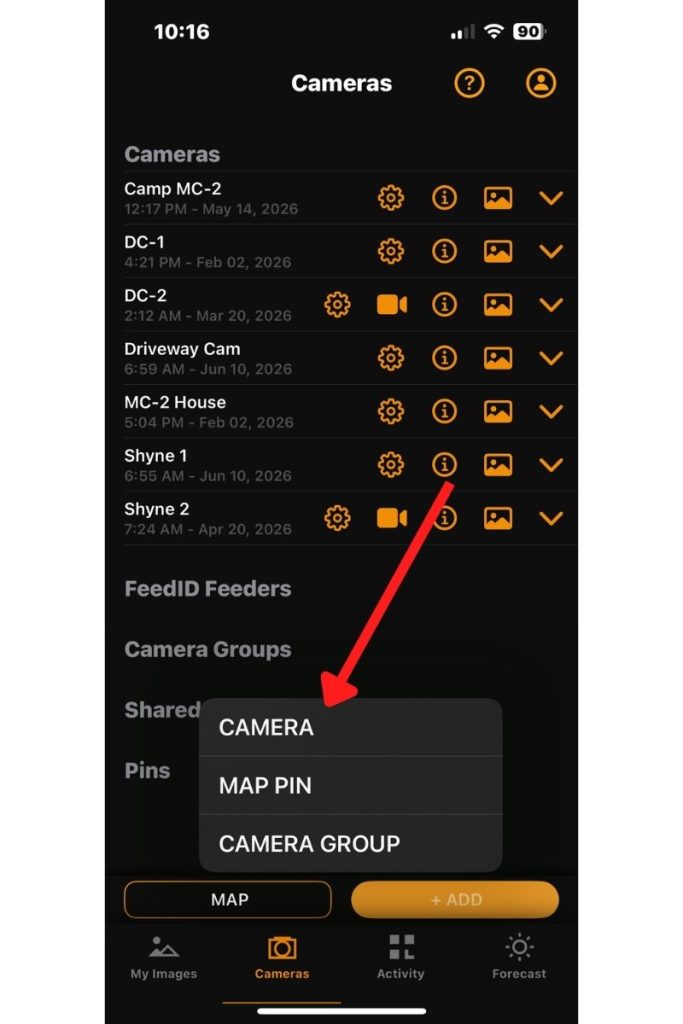
Step 2: Locate the Orange +ADD button towards the bottom right than click on Camera
Step 3: Fill out what you want to name your camera than fill out the IMEI number. Once those 2 things are done press save. Now you have successfully added your camera to your account and it is ready to be used.

Activating/Deactivating Cameras
Ranch Plus is designed for flexibility and seasonal use. As long as a camera is deactivated or hasn’t transmitted any data during your billing period you will not be charged for it.
- Activate cameras anytime through the HuntControl app
- Deactivate cameras whenever needed
- Stop paying for cameras that are not actively being used
Steps on how to activate/deactivate your cameras in your HuntControl app:
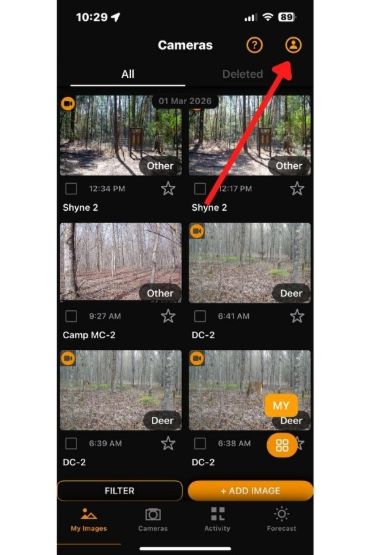
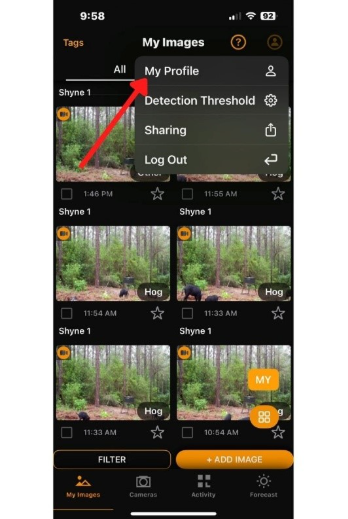
Step 1: Locate the Profile Tab in the top right of your HuntControl
Step 2: Select My Profile
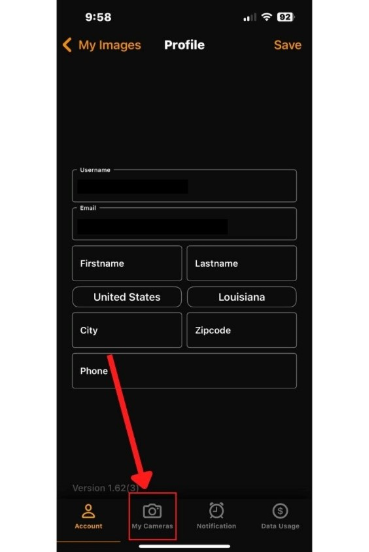
Step 3: Locate My Cameras tab towards the bottom of your HuntControl
Step 4: Select which cameras you want activated or deactivated
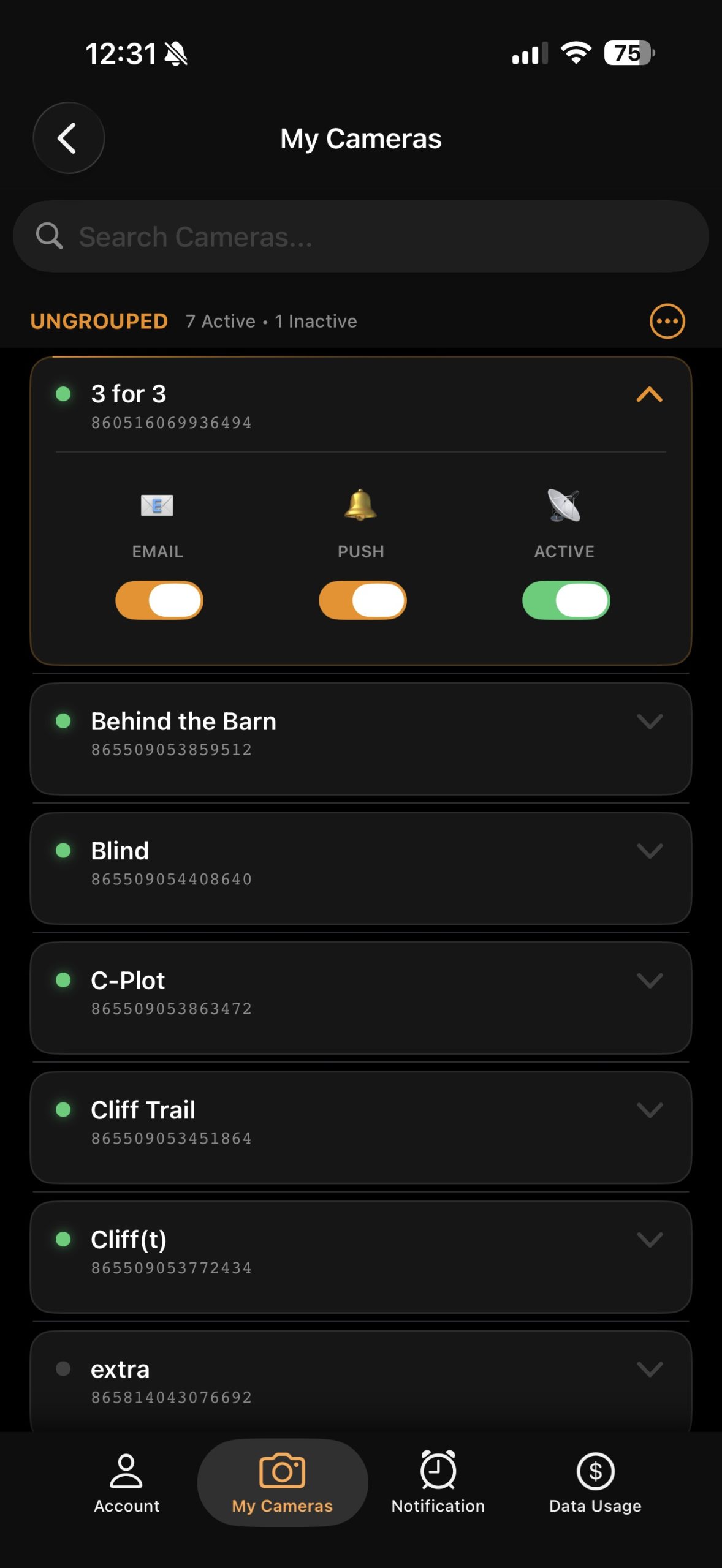
Our system will automatically track which cameras are activated/deactivated in your account and charge you accordingly.
Whether you’re running a single camera or managing an entire network across multiple properties, Ranch Plus gives you the flexibility to adapt without the hassle of managing subscription plans. Add cameras when you need them, pay for the data you actually use, and enjoy the freedom of a subscription built around you not the other way around. With Ranch Plus, managing your cameras has never been simpler. Switch over to Ranch now if you haven’t already. You will not regret it.
You can purchase a plan here! Or learn more about the plan here.
Related Articles

Using the ActionShot Feature

